How to make a Hop Hop Hop AI video
Last updated:
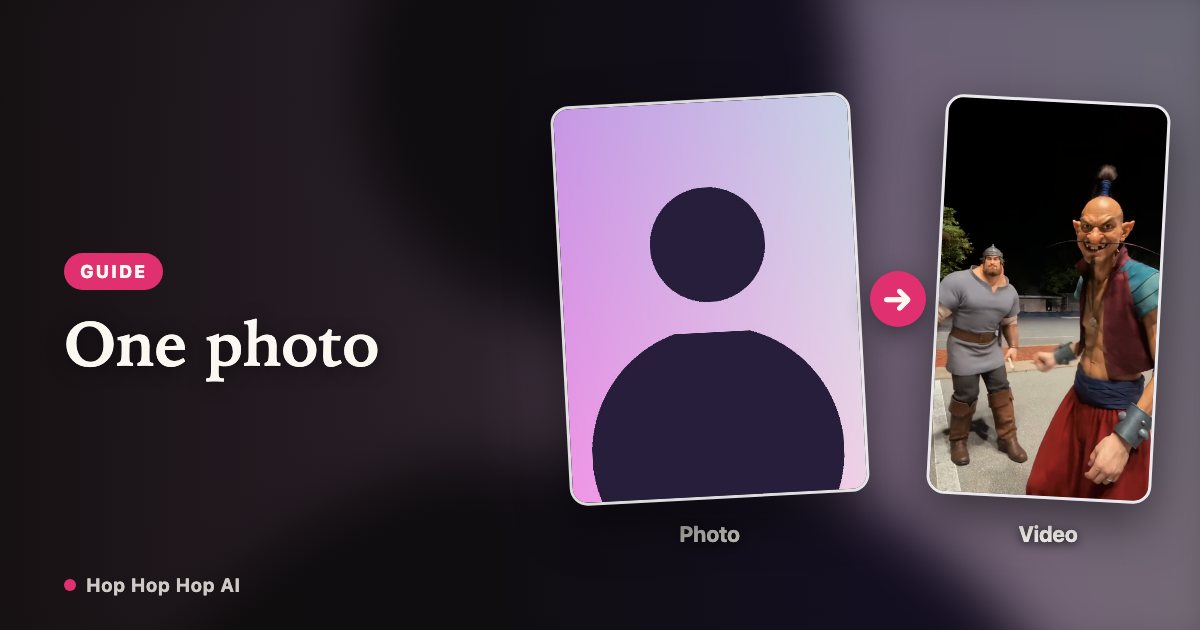
Want to join the Hop Hop Hop dance trend without filming the choreography? You can use one or two photos to generate an AI dance video featuring the familiar hop, squash and role swap. This guide walks through the actual steps on HopHopHopAI, what the “AI filter” search term means, how credits work, and what to do if a render fails or the face does not look like you.
Quick start: the four-step version
Open the HopHopHopAI home page, add a clear photo of an adult, and optionally add a second authorized adult. Choose an available video length, confirm that everyone shown has given permission, then start the generation. When the render finishes, save the MP4 from the result screen or your account's video history.
Step 1: decide between a one-photo and two-photo version
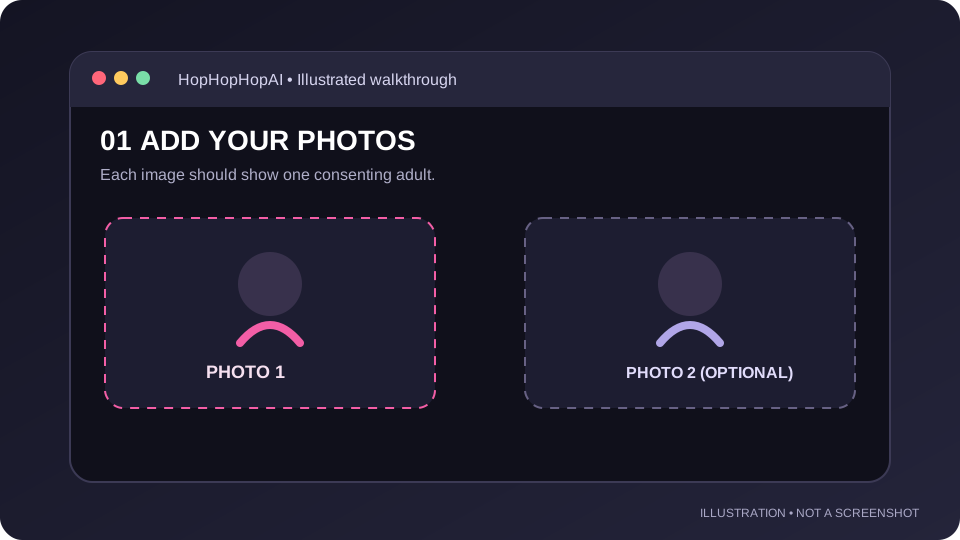
A single photo is useful if you want a version featuring the same person across roles, often described by users as a twin-style AI dance. Two photos better communicate the classic back-and-forth between you and a friend. In both cases the important requirement is clear identification of the person, not an elaborate background or special outfit.
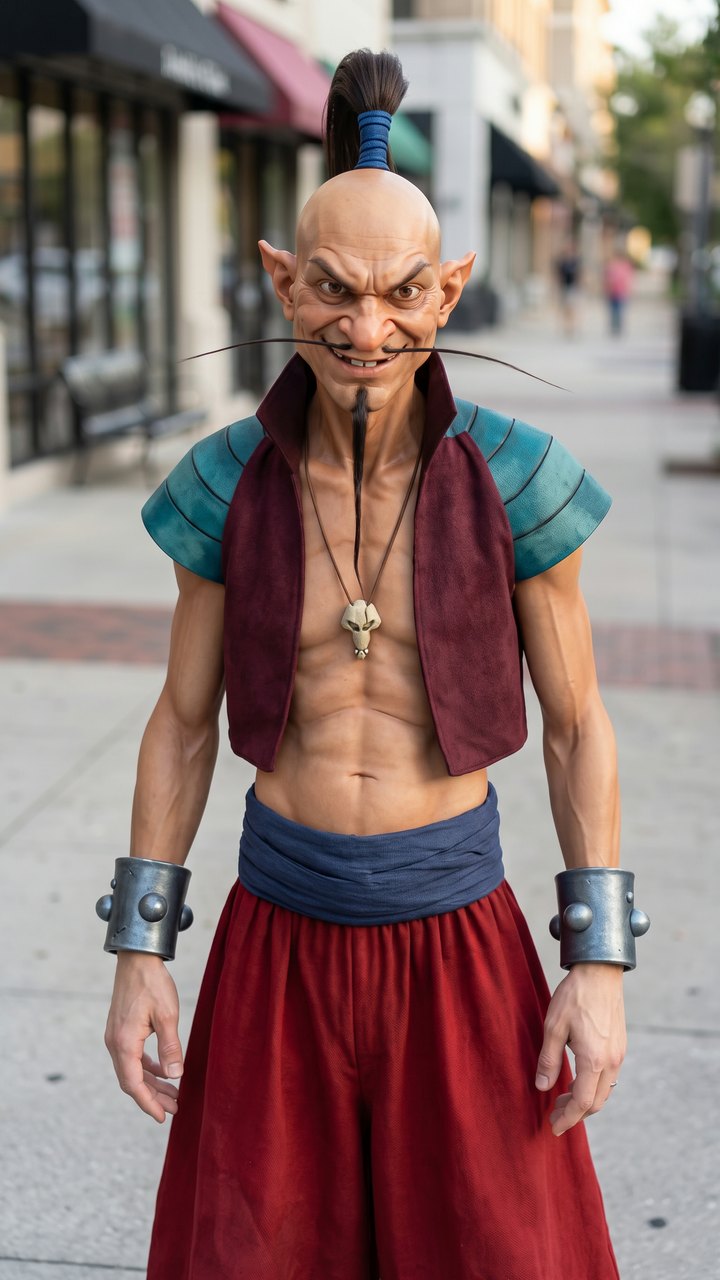
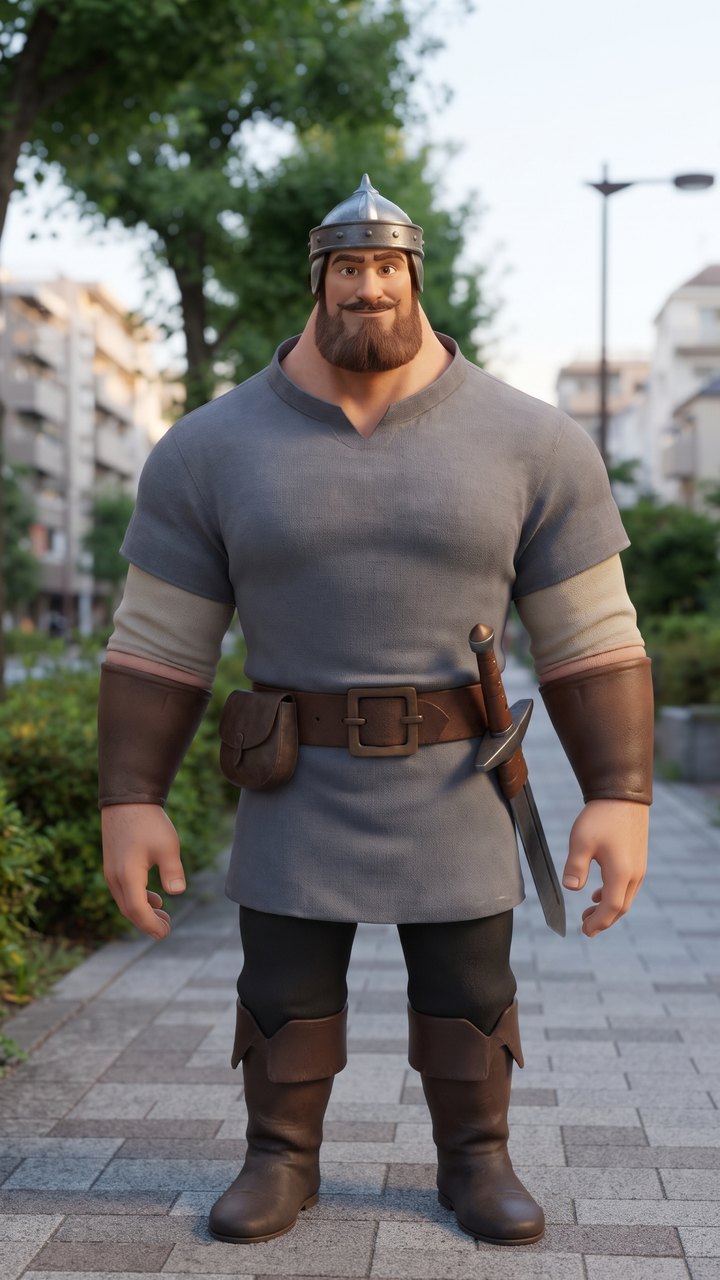
For a two-person version, decide who should appear close to the camera first. Put that person in the first photo slot. Put the partner who starts in the distance in the second slot. The ordering matters because the viewer needs a clear before-and-after role swap. If the tool shows on-screen labels for the two positions, follow those labels rather than guessing from a reference screenshot.
Step 2: choose photos that preserve facial identity
For best results, select photos with one face per image, even daylight, a reasonably direct angle, and visible hair and shoulders. If the model needs to animate the whole person, a half-body or full-body photograph can provide more clothing and posture information than a face-only crop. Do not blur faces to hide identity: the generator needs recognizable visual features to work.
Avoid sunglasses, masks, very low resolution, severe motion blur, large text overlays and beauty filters that reshape the face. Those features can make the output generic or cause it to inherit artifacts. For a two-person version, try roughly similar image quality and lighting so one person does not look conspicuously more synthetic than the other.
Step 3: upload the photos on HopHopHopAI
Visit the generator on the home page and look for the photo upload controls. Select a file from your device or use the available phone-upload route if you are working on a computer and the photo is on your phone. Wait for the interface to confirm that each image was uploaded before pressing Generate.
If a photo fails to upload, first confirm the file format and size. Large phone exports, unsupported formats, unstable Wi-Fi and browser privacy extensions can interrupt an upload. Convert the picture to JPG or PNG, keep it under the displayed size limit, and retry. If you are using a phone-to-computer upload link, start a fresh link when the previous session expires.
Step 4: select an available duration and understand credits
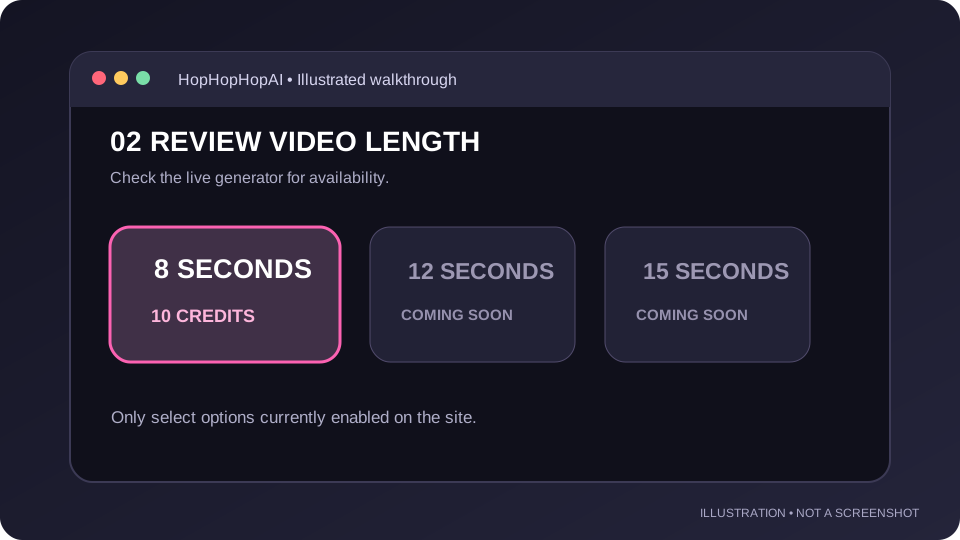
Before submission, read the duration choices and the credits displayed beside each choice. At the October 2026 launch, the eight-second option costs 10 credits in the project configuration. Longer options may be displayed as coming soon and should not be treated as available merely because pricing text mentions them elsewhere.
Credits are not equivalent to dollars; they are a usage balance purchased in packs. The generator should show the exact amount charged for your selection. If the balance is too low, choose a suitable credit pack first. Do not claim that the site gives free video renders unless an active promotion explicitly says so.
Step 5: confirm consent, generate and monitor the result
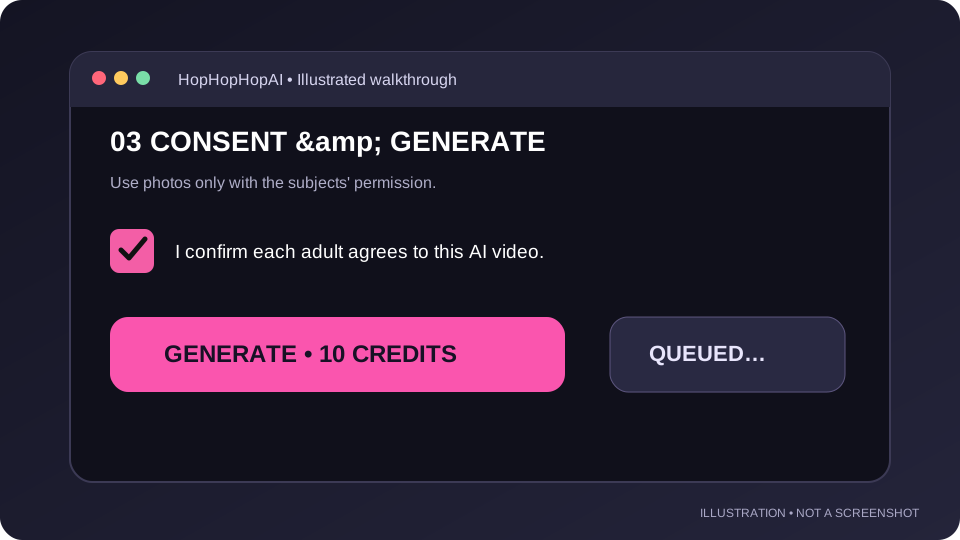
The consent checkbox matters. It confirms that the people in the photos are adults and have authorized this AI portrayal. This is especially important for a trend where the subjects appear to perform movements they may never have filmed. Treat a generated face and body as someone's likeness, not as a disposable sticker.
Submit the job only once. The browser may show a waiting state followed by rendering status. AI video generation is not instantaneous, and a busy queue can delay the result. You can return to the My videos area to check a generation later instead of repeatedly submitting the same photos and consuming more credits.
Step 6: inspect, download and share the MP4
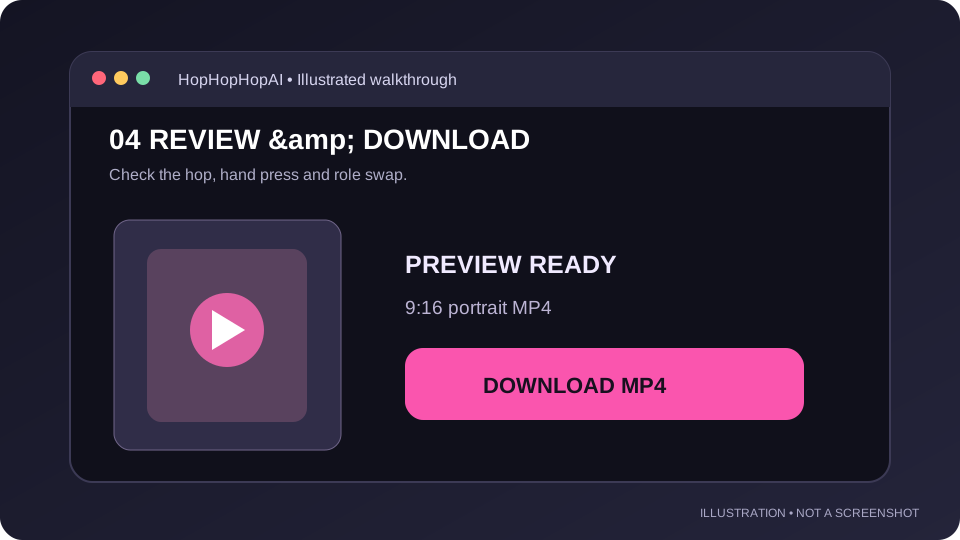
When the result is ready, watch it all the way through before downloading. A strong Hop Hop Hop clip should have an unmistakable close/far setup, a hand that appears to press the distant dancer down, visible hopping or crouching, and a cut that exchanges the two positions. The reference examples are roughly eight seconds; a generated version can differ in framing and micro-movements.
Check more than the first frame. Look closely at the frame immediately before and after the swap: does the same face remain on the correct person? Do outfits change without explanation? Are there exactly two intended people? Does one character disappear during the cut? These are common quality issues in current image-to-video systems.
What is the Hop Hop Hop AI filter, and do I need one?
People searching for “hop hop hop ai filter” usually want their own face or a friend's face in the trending routine. Depending on the page, “filter” may mean a TikTok effect, a CapCut transition, or a dedicated AI video generator. These tools are not interchangeable. A color or face filter does not create the entire dance from a still image.
Troubleshooting: the upload or generation fails
If an upload fails, start with the file. Check that it is JPEG, PNG or WebP, that it is within the on-screen size limit, and that it can open normally on your device. Rename an unusually long filename, remove an unsupported image extension, and retry in an up-to-date browser. On unstable mobile data, switching to Wi-Fi can help.
If the job stays queued, do not start several identical jobs at once. Open My videos and wait for the existing job's status to change. Temporary provider capacity, connection errors or an unavailable source image can prevent a completed render. A technical failure should return the charged credits; review your balance before making a second attempt.
Troubleshooting: the video doesn't look like me
Identity drift is different from a failed upload. The generator may produce a playable clip but change the shape of the eyes, hairstyle, nose or outfit during motion. The best first fix is a sharper and more straightforward source photo. Use one well-lit person facing the camera, with the eyes unobstructed and the head fully visible.
Troubleshooting: the hops, squash or swap look wrong
The choreography has three essential checkpoints: the back character bounces, the front character presses a flat hand down while the other crouches, and the shot changes with both characters exchanging positions. If one checkpoint is absent, the video may still look like a dance but will not resemble the specific trend people searched for.
A reference-video workflow can struggle with hands, full-body motion and identity continuity during cuts. Source photos cannot fix every motion-model problem. If one character simply stands still or the swap is missing, report the exact time in the result and the selected style; this helps distinguish a bad input from a template or model limitation.
Can I make the video manually instead of using AI?
Yes. Put a phone on a stable tripod in portrait orientation, position one adult close to the lens and another farther back, and record the pointing, hopping and squash actions. Make a second take after changing their places. Trim and join the takes at a beat with a clear hard cut. This route offers more predictable timing and true facial likeness.
If you are mainly researching the phenomenon, see our linked trend explainer for the creator timeline, the October 2026 examples and the song. If you want to generate from your own photos, return to the home page and review the available credit cost before starting.
Privacy, consent and platform labels
Use photos of adults who agree to the transformation. Sharing someone's image privately with an AI model may still require their permission. Do not upload minors, public figures or third-party portraits without authorization. A fun trend should not become an excuse for impersonation or synthetic footage that could embarrass someone without consent.
TikTok's official AI-content guidance includes the example of making someone appear to dance when they did not. It requires labels for realistic AI-generated content. Platform rules and the precise labeling steps can change, so check the publishing app's current settings when you upload the finished video.
Frequently asked questions
How do I make a Hop Hop Hop AI video from one photo?
Upload one clear authorized adult photo, choose an available duration, confirm consent, and generate. A single photo is intended for a same-person version; review the result to make sure the face remains recognizable.
Does the Hop Hop Hop AI filter work directly inside TikTok?
“AI filter” is an informal search label. Some TikTok effects or editing templates may exist, but this website uses a separate browser-based video generator. A generic face filter does not automatically reproduce the full squash-and-swap choreography.
Why did my video generation fail?
An unsupported upload, provider issue or processing error can prevent a render. Check the upload format and your job history before retrying. Failed generations are designed to return the charged credits; contact support if the balance is not restored.
Why does my AI dance video not look like me?
Blurry images, blocked faces, filters and motion-model identity drift can cause poor likeness. Use a sharp, unfiltered, front-facing picture with visible hair and shoulders; results still vary, particularly after the hard cut.
Is Hop Hop Hop AI video generation free?
Viewing the guide is free, but video generation uses credits. The live generator shows the current credit cost and which lengths are available. Do not assume an option marked “coming soon” can be purchased.
Can I post the generated video on TikTok or Reels?
You can share your own authorized creation, subject to the platform's current rules. For realistic AI-generated footage, turn on the platform's AI disclosure setting and respect any sound or creator licensing restrictions.
Sources and original posts
Creator clips belong to their original authors. Third-party viewing figures are dated observations rather than real-time measurements.
Your Hop Hop Hop moment is one photo away
Create my video